


How to use the P2P blocklist on WEEX
1. What is the P2P blocklist?
To provide a safer and smoother trading experience, our P2P platform now supports a blocklist feature for both users and merchants.
When you add a counterparty (user or merchant) to your blocklist:
- They will no longer be able to trade with you
- Their ads will no longer appear in your listings
- The system will automatically exclude them when matching orders
This feature lets you filter out unwanted trading partners and avoid negative experiences.
2. How do I block a user?
If communication becomes difficult or the trading experience is unsatisfactory, you can block the user directly from the order page.
- Go to the P2P order details page
- In the counterparty information section, select "Add to Blocklist"
- Confirm in the pop-up window. Once blocked, the user will no longer be able to trade with you.
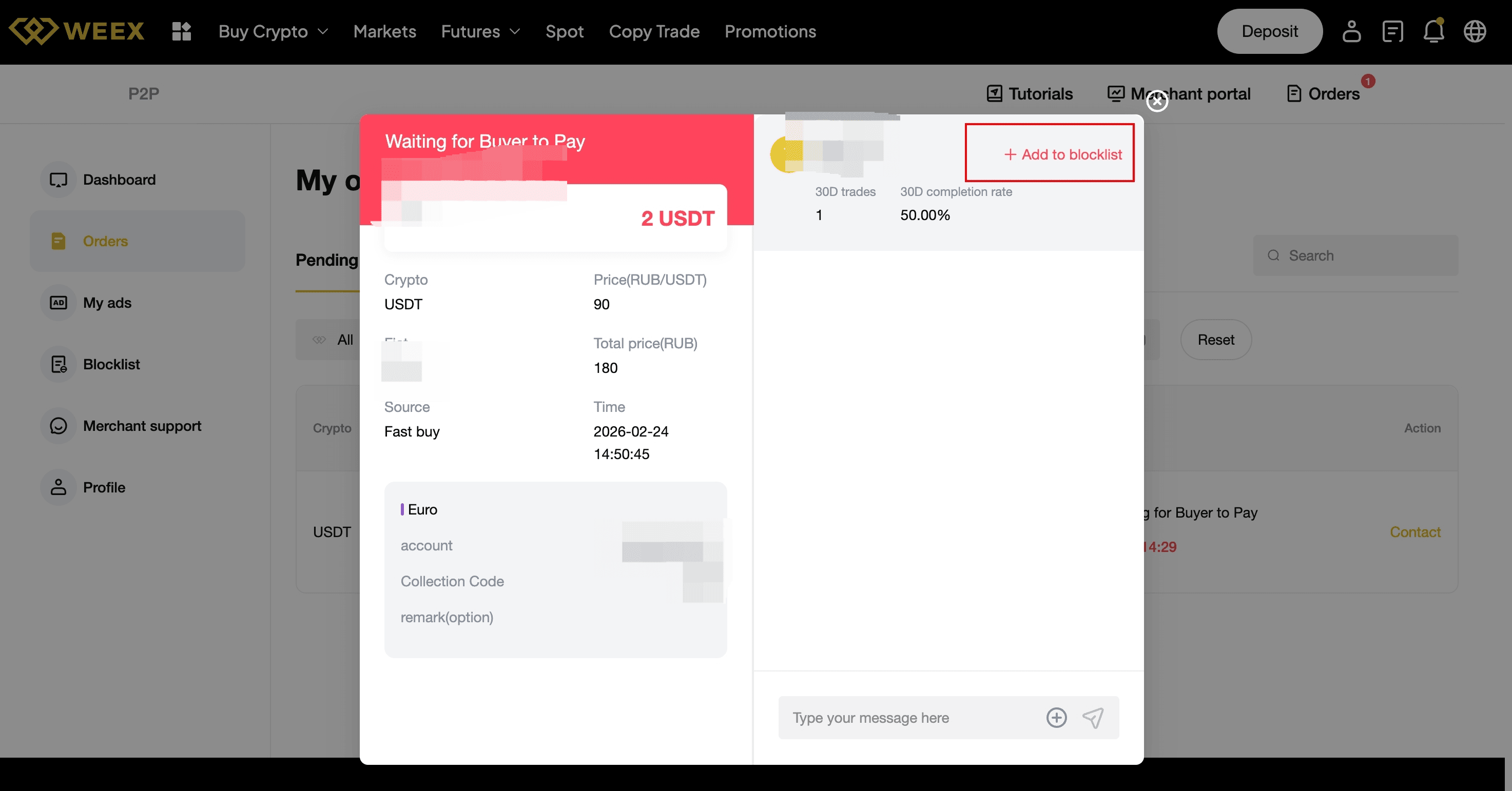
3. How do I block a merchant?
If you want to hide all ads from a specific merchant, you can block them from their profile page.
- Select the merchant's alias or avatar to open their profile
- Select "Block" in the top-right corner
- Confirm in the pop-up window
After blocking a merchant:
- Their ads will no longer appear in your listings
- The system will not match you with their orders
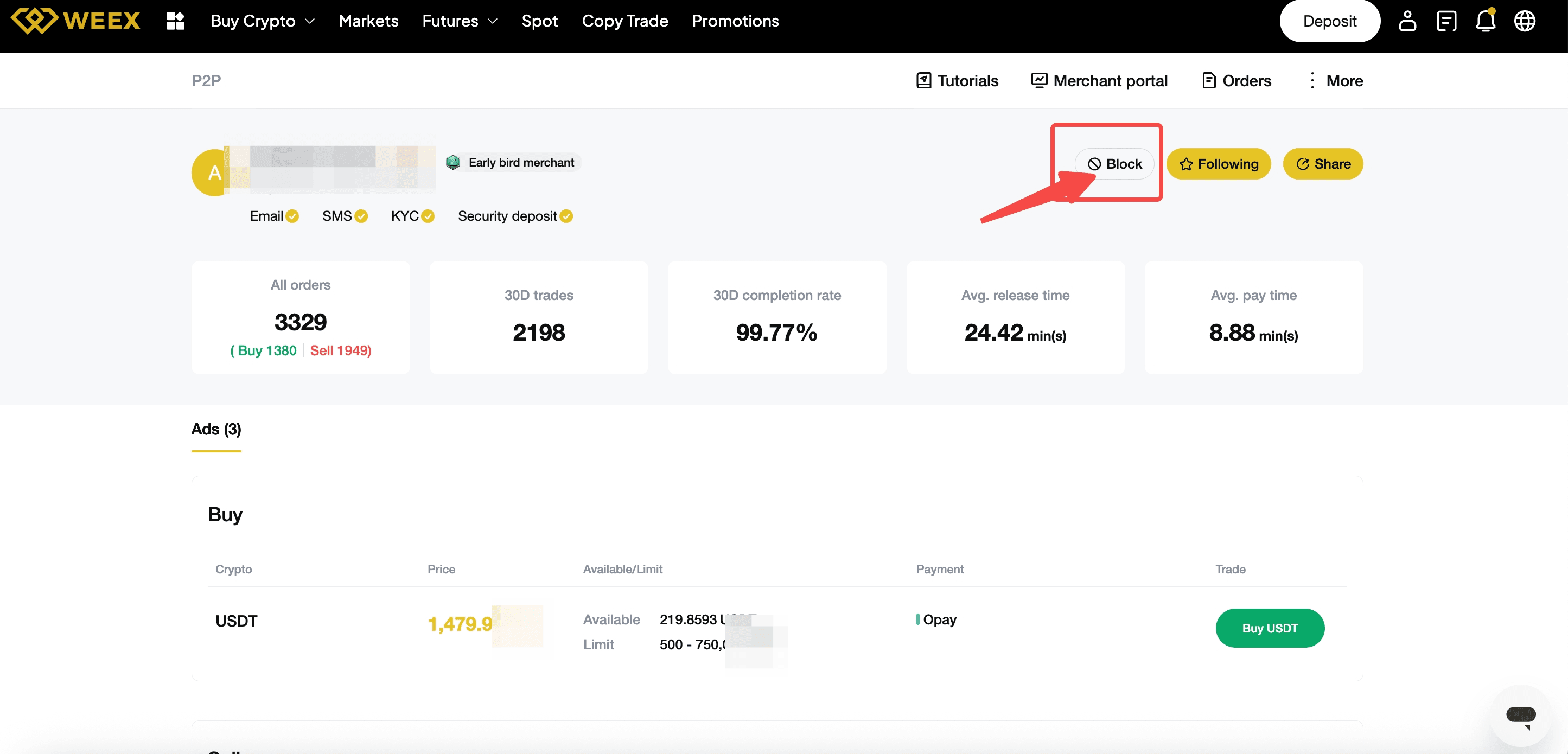
4. Will blocking affect my current orders?
No. Blocking only applies to new orders.
- Any order already in progress will still be completed as usual.
- If a dispute occurs in the current order, you can submit an appeal and our customer support team will assist.
5. Why can't I block some merchants?
To maintain healthy market liquidity and stable trading services, some merchants cannot be blocked.
If you have a poor experience with such merchants, you can:
- Choose a different merchant for your trade
- Check the merchant's completion rate, order volume, and ratings before trading
- Report or appeal if you encounter suspicious activity
6. How can I manage my blocklist?
You can manage your blocked users and merchants from the P2P blocklist page.
7. Can I trade with someone after unblocking them?
Yes. After removing a user or merchant from your blocklist:
- You can trade with them again on P2P
- Their ads will be visible to you again

Gainers


